

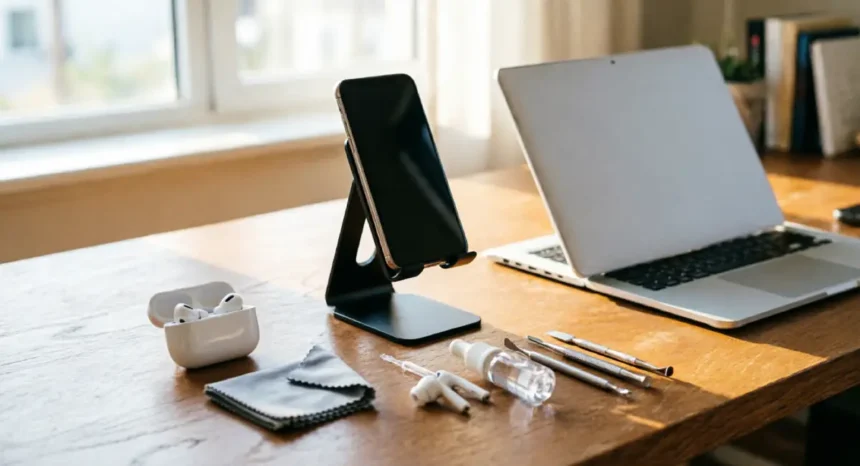
Most people do not replace their gadgets because the device stopped working. They replace them because years of small, careless habits quietly wore the device down until it felt too slow, too unreliable, or too broken to bother fixing.
- Why Tech Gadgets Wear Out Faster Than They Should
- Battery Habits That Actually Increase Gadget Lifespan
- Physical Care Routines That Protect Your Devices Long-Term
- Software and Settings That Help You Increase Gadget Lifespan
- Storage and Performance Maintenance for Aging Devices
- Environment and Storage Conditions That Extend Device Life
- Charging Accessories and Power Quality: An Overlooked Factor
- Device-by-Device Tips: What Matters Most for Each Gadget
- Conclusion
Most of that damage is preventable. The tips below target the real reasons devices fail early and what you can do about each one — no technical background required, just consistent habits in the right places.
Whether you want more years from a smartphone, a laptop running at full speed, or accessories that cost more than they should, this guide covers every angle.
Why Tech Gadgets Wear Out Faster Than They Should
Most devices do not fail suddenly. They fail gradually — through heat they cannot escape, batteries pushed past their limits, dust clogging vents, and software running heavier than the hardware can handle.
Heat is the leading cause of long-term hardware damage. When internal temperatures stay high, solder joints weaken, battery cells degrade faster, and chips throttle their own performance to avoid shutdown. A device that runs hot regularly will feel noticeably slower within two years.
Battery misuse is the second major factor. Lithium-ion cells lose capacity with every charge cycle, but the rate of loss accelerates at extreme charge levels or high temperatures. A mistreated battery may sit at 70% capacity after 18 months when a well-managed battery in the same device is still above 90%.
Dust and debris block the airflow that keeps internal components cool. On laptops, clogged vents can raise internal temperatures by 10 to 15 degrees Celsius, which directly speeds up processor wear and battery degradation.
Software neglect is the least visible factor but still significant. Outdated operating systems, unmanaged background apps, and overfull storage all force hardware to work harder than necessary. That extra strain adds up over time.
None of these causes is inevitable. They are the result of habits, and habits can be changed.
The Hidden Costs of Replacing Devices Too Early
The average smartphone is replaced every two to three years, even though most devices are built to function well for five years or more with basic care. That gap represents real money.
A mid-range smartphone costs between $400 and $700. Replacing it a year or two earlier than necessary, across a decade, means spending one to two full device costs more than you needed to. Multiply that across a laptop, tablet, earbuds, and other gadgets, and the number climbs quickly.
There is also an environmental cost. Electronic waste is one of the fastest-growing waste streams worldwide. Devices contain materials that are difficult and expensive to recover. Keeping a device in use for one or two extra years is one of the most direct ways to reduce your contribution to that problem.
The financial and environmental cases point in the same direction: maintain what you have before you consider replacing it.
Battery Habits That Actually Increase Gadget Lifespan
Batteries are the component most likely to make a device feel old before it is. When a phone that used to last a full day barely reaches mid-afternoon, most users start thinking about a replacement. In most cases, the battery is the only thing that needs attention.
The core principle behind good battery care is avoiding extremes. Lithium-ion cells experience the most stress at very high or very low charge levels, especially combined with heat. The rule most battery researchers and manufacturers recommend: keep your device charged between 20% and 80% for everyday use.
This applies to smartphones, laptops, and tablets. It is not a perfect rule in every situation, but as a default habit it reduces the rate at which cells lose permanent capacity. Apple, Samsung, and several laptop manufacturers now build charging limit tools directly into their devices for exactly this reason.
Should You Keep Your Device Plugged In All the Time?
A common assumption is that leaving a device on charge once it hits 100% is harmless because the charger simply stops delivering power. In practice, it is more nuanced.
When a lithium-ion battery sits at 100% charge, it experiences what battery engineers call “high voltage stress.” The cells are under greater electrochemical strain at full charge than at a moderate level. Keeping a device plugged in and at 100% for hours every day accelerates maximum capacity loss over months and years.
Windows includes a Battery Report tool you can access by running powercfg /batteryreport in the command prompt. It shows your battery’s original design capacity compared to its current capacity. macOS shows battery health information directly in System Settings under Battery. Checking this once every few months gives you an honest read on how your battery is aging.
If you use a laptop at a desk most of the day, setting a charge limit to 80% in your manufacturer’s battery management app is one of the most effective steps for long-term battery health.
How Heat Destroys Battery Cells and What to Do About It
Heat causes more permanent battery damage than charge level mismanagement does. Research from battery manufacturers consistently shows that sustained temperatures above 35 degrees Celsius accelerate cell degradation significantly, with damage compounding the longer the exposure lasts.
A phone left on a car dashboard on a warm day can exceed that threshold within minutes. That single habit, repeated regularly, can shave years off a battery’s usable life.
A few changes that make a real difference:
- Remove thick or poorly ventilated cases during intensive tasks like gaming, video calls, or navigation
- Keep devices off soft surfaces like beds or sofas during use, as these block the passive airflow devices rely on
- Never leave gadgets in direct sunlight or in a parked car
- Avoid charging devices while running them at full performance simultaneously, as this compounds heat generation
These are not complicated adjustments — just awareness of where heat comes from and what it costs.
Physical Care Routines That Protect Your Devices Long-Term
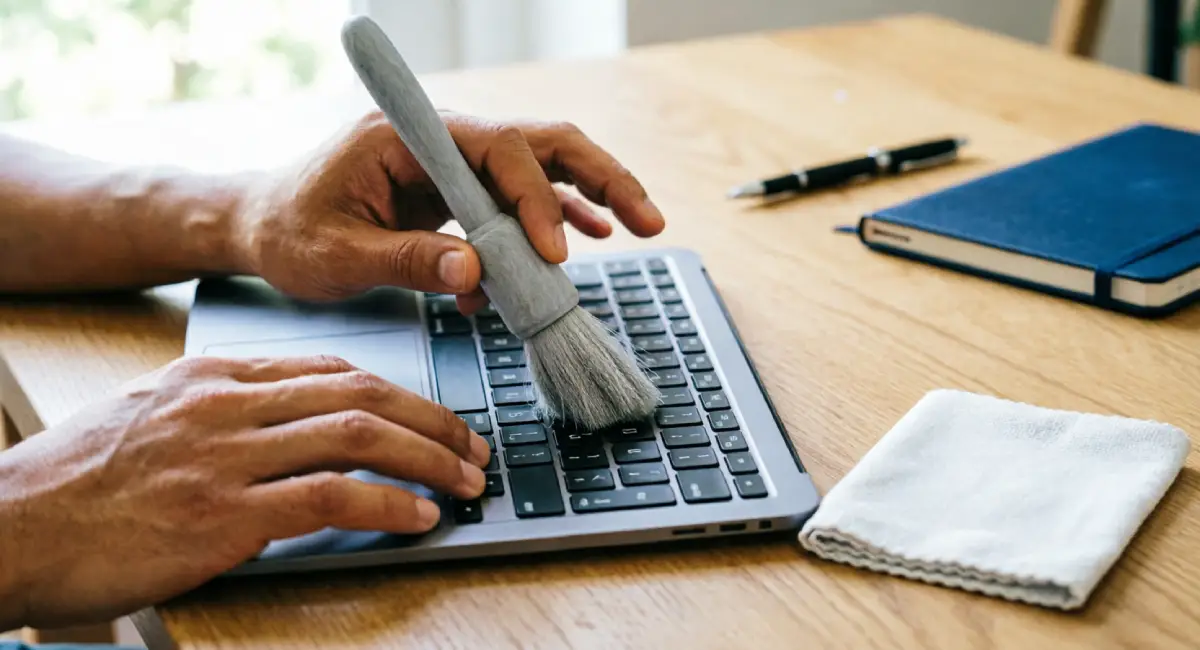
Physical damage does not always announce itself immediately. A port that gets slightly bent from a rough cable insertion, a charging contact that corrodes slowly from skin oils, a screen that develops pressure damage from being stored face-down in a bag — these failures build gradually until they become a real problem.
The care routines below are simple, low-cost, and easy to work into any schedule.
How to Clean Electronics Without Causing Damage
The biggest cleaning mistake people make is using the wrong materials. Paper towels and household cloths leave micro-scratches on screens over time. Ammonia-based cleaners and bleach damage screen coatings and corrode plastics. Compressed air pointed directly into ports can force debris further inside and damage connectors.
The right approach:
- Use a microfiber cloth for all screen and surface cleaning
- Use 70% isopropyl alcohol on a cloth (not sprayed directly) for keyboards and external surfaces
- Use a soft-bristle brush — a clean, dry paintbrush works well — to sweep dust from vents, keyboard gaps, and port openings.
- For laptop vents, use short bursts of compressed air held at an angle rather than pointed straight in to move dust outward without pushing it deeper.r
Wipe down daily-use devices once a week. Clean keyboard gaps and vent openings once a month. For laptops, a more thorough vent cleaning every three to six months is worthwhile if you regularly use the device on soft surfaces.
Cases, Screen Protectors, and When They Actually Matter
A case is worth using on any device you carry regularly. Drops, bag abrasion, and pocket contact cause cosmetic damage that reduces resale value and, in some cases, structural damage that affects internal components. A hard-shell case or rugged bumper case on a phone or tablet is a small cost relative to what it protects.
One caveat: thick silicone cases with poor ventilation can trap heat during heavy use. If you notice your device running warm during gaming or video calls, removing the case temporarily helps.
Tempered glass screen protectors are worth the cost on smartphones and tablets. They absorb impact that would otherwise reach the actual screen and are far cheaper to replace. Look for ones rated 9H hardness.
Laptop screen protectors are less common but worth considering for devices that are frequently transported. At a minimum, avoid storing anything on top of a closed laptop in a bag.
Software and Settings That Help You Increase Gadget Lifespan
Most device owners think of maintenance purely in physical terms. But the software side of a device directly affects how hard its hardware has to work, which in turn affects how quickly components wear out.
A device running outdated software, overloaded with background processes, and full to capacity is working significantly harder than it needs to for every task. That sustained load shortens processor lifespan, accelerates battery drain, and contributes to long-term storage wear.
Why Keeping Software Updated Matters for Hardware Health
OS updates and firmware patches are typically framed as security improvements — which they are. But they also frequently include power management improvements, thermal efficiency adjustments, and scheduler optimizations that reduce hardware workload.
Outdated firmware on a smartphone can cause the processor to run power-hungry routines that a newer version handles more efficiently. Outdated laptop BIOS firmware can interfere with fan control, meaning the cooling system runs less effectively than it should.
Enable automatic security updates and schedule larger OS updates for when you have time to let them complete properly. Devices running software two or more versions behind their current supported release give up real performance and hardware efficiency.
Which Background Processes Are Quietly Draining Your Devices
Background processes are the device equivalent of leaving every appliance in your home running on standby. Individually, each one seems minor. Collectively, they drain the battery, generate heat, and keep the processor from entering low-power states.
The most common offenders:
- Constant cloud sync running even when you are not actively working
- Location access enabled for apps that do not need it
- Auto-play media in apps and browsers
- Background app refresh enabled for every installed app on iOS and Android
- Search indexing running during active use
On both iOS and Android, the battery usage section in settings shows exactly which apps consumed the most power in the past 24 hours or 7 days. Checking this monthly takes five minutes and often reveals one or two apps behaving unexpectedly. Revoking background refresh or location access from those apps has a direct impact on both battery life and processor load.
Storage and Performance Maintenance for Aging Devices
As a device gets older, storage management becomes one of the most important factors in keeping it feeling fast and reliable. This is the area where a small amount of routine attention prevents the majority of “my device has slowed down” complaints.
How Full Storage Silently Degrades Device Performance
Storage drives and flash memory on phones slow down write speeds significantly as capacity fills up. When a drive is near-full, the system has less space to manage temporary files, virtual memory, and background operations efficiently.
A phone at 95% storage capacity can take noticeably longer to open apps, process photos, and switch between tasks compared to the same phone at 60 to 70% capacity. This is not a perception issue — it is a measurable performance difference caused by how flash storage manages write operations when space is limited.
Maintain at least 15 to 20% of total storage free on any device. For a 128GB phone, that means keeping at least 20 to 25GB available. Regular offloading of photos to cloud storage or a computer, deleting unused apps, and clearing cached data monthly keeps most devices well within that range without requiring a storage upgrade.
When to Reset and When to Repair Instead of Replace
Not every sluggish or unreliable device needs to be replaced. Three options exist before replacement becomes the right call.
A factory reset is the right step when a device has accumulated software corruption, excessive background clutter, or conflicts between apps that routine cleaning has not resolved. It restores the device to a clean state and is worth trying when performance has degraded despite good storage and battery health.
A hardware repair — most commonly a battery replacement — is the right step when the hardware itself is causing the limitation. A battery replacement on a three-year-old smartphone typically costs between $50 and $100 and can restore the device to near-original performance for another two to three years. That is a strong return compared to the cost of a replacement device.
Replacement becomes the right call when the device is no longer receiving OS security updates, when multiple hardware components have failed, or when its performance genuinely cannot meet the tasks you need it for — not just when it feels slightly slower than a new device would.
Environment and Storage Conditions That Extend Device Life
Where you store your devices matters as much as how you use them. This applies especially to gadgets that are not in daily use — cameras, spare tablets, portable speakers, and backup devices. Storing them incorrectly between uses can cause more damage than active use does.
The Right Temperature Range for Storing Electronics
Most consumer electronics are rated by their manufacturers for storage between 0 and 45 degrees Celsius. For long-term storage, the ideal range is closer to 20 to 25 degrees Celsius — standard room temperature.
Common storage locations that fall outside safe ranges:
- Garages in summer or winter climates, which can exceed 45 or drop below 0 degrees Celsius
- Car glove compartments, which heat up rapidly in direct sunlight
- Attics and basements, which combine temperature extremes with humidity fluctuations
Extreme cold does not cause permanent battery damage in most cases — it causes temporary capacity loss that typically recovers once the device warms up. Extreme heat is different: sustained high temperatures cause permanent cell degradation and can warp internal components.
If you are storing a device for more than a few weeks, charge the battery to around 50% before putting it away. Storing at full charge holds cells under high-voltage stress; storing at near-zero charge can cause the battery to drop below the minimum threshold for recharging.
How Humidity and Dust Affect Internal Components Over Time
Humidity above around 60 to 70% relative humidity creates conditions where condensation can form on circuit boards and metal contacts. Over time, this causes corrosion that is often invisible until a component fails. Ports and connectors are particularly vulnerable.
For long-term storage, placing a few silica gel packets inside the storage bag or case helps absorb moisture and keeps the environment dry enough to prevent corrosion. These are inexpensive, reusable after drying, and effective.
Dust accumulation inside laptop and desktop vents reduces airflow, raises internal temperatures, and creates a surface for moisture to adhere to. Cleaning vents every three to six months matters especially in dusty environments or homes with pets. A can of compressed air used at an angle — not straight into the vent — clears most of the buildup without pushing it deeper into the device.
Avoid using devices in very high-humidity environments, such as bathrooms or outdoor spaces in rain, unless the device is rated for that exposure. IP ratings on smartphones indicate water resistance, but that rating does not cover extended or repeated exposure.
Charging Accessories and Power Quality: An Overlooked Factor
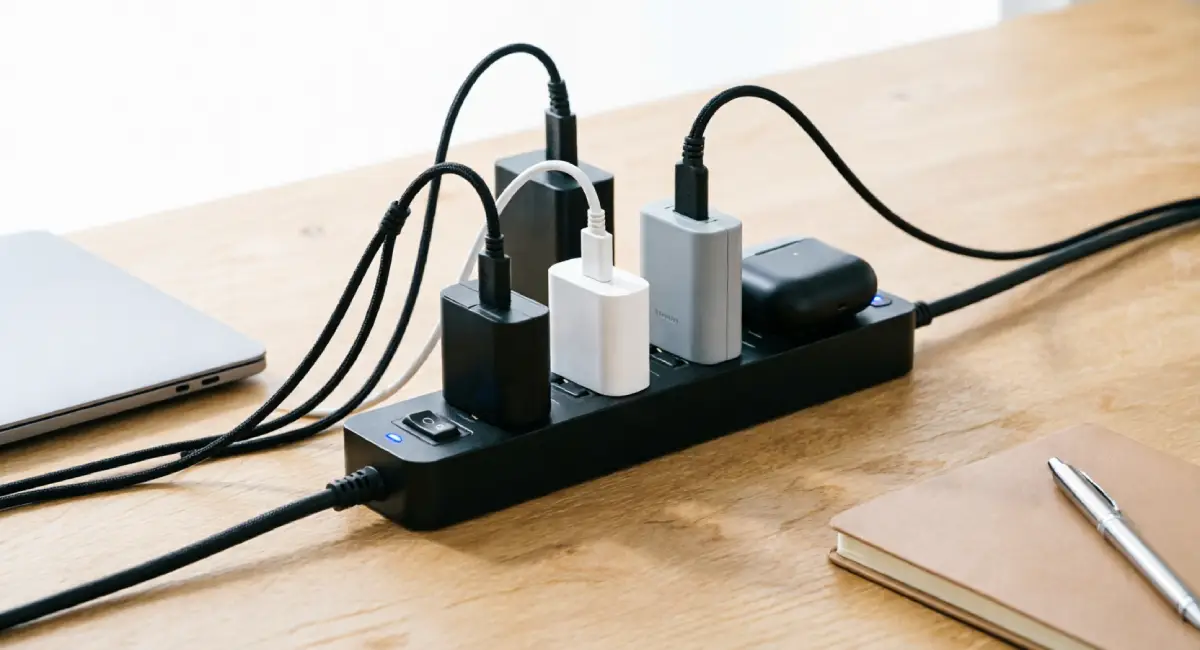
Most people invest considerable thought into which devices they buy and very little into what charges them. That gap in attention has real consequences. The charger and cable connected to your device influence battery health directly, and the quality of your wall power affects every device in your home.
Why Cheap Chargers Shorten Device Life
Uncertified chargers cut costs by removing components that regulate voltage delivery. Where a certified charger maintains a stable, consistent current, a low-quality alternative may deliver inconsistent power that forces the battery management circuitry inside your device to work harder to compensate.
In the worst cases, cheap chargers deliver voltage spikes that damage battery cells directly. In less severe cases, they simply cause faster degradation over time through repeated small irregularities.
Certification standards to look for:
- USB-IF certification for USB-C chargers confirms the charger meets the USB Power Delivery standard
- MFi certification (Made for iPhone/iPad/Mac) for Apple device accessories confirms compatibility and safety
- UL listing indicates the charger has been independently tested to electrical safety standards
Using original manufacturer chargers or certified third-party alternatives from established brands is one of the simplest and most consistently effective steps in any device care routine. The price difference between a certified charger and an uncertified one is small relative to the device it protects.
Surge Protectors and UPS Devices: Are They Worth It?
A basic power strip routes power from the wall to multiple outlets. It does not protect against surges. A surge protector includes components that absorb or redirect voltage spikes, preventing them from reaching connected devices.
For anyone with devices plugged in at a desk — laptops, monitors, desktop computers, external drives — a quality surge protector is a low-cost investment that pays for itself the first time it absorbs a surge that would otherwise have reached a device.
For home office setups where continuous uptime matters or where high-value equipment is involved, a UPS (Uninterruptible Power Supply) offers the next level of protection. A UPS includes a battery that keeps connected devices running through brief power outages and conditions incoming power before it reaches the device. Entry-level UPS units suitable for a home office cost between $60 and $150 and protect against both surges and sudden power cuts.
Device-by-Device Tips: What Matters Most for Each Gadget
The advice throughout this article applies broadly, but each device type has its own highest-impact habits. Use this section as a quick reference for the devices you use most.
Smartphones: Daily Habits That Add Years of Use
- Charge between 20% and 80% whenever possible and use the manufacturer’s battery limit setting if one is available
- Use a hard-shell or rugged bumper case and a 9H-rated tempered glass screen protector from day one.
- Clear app cache monthly via Settings and audit background app refresh every few months
- Never store your phone in direct sunlight, on a car dashboard, or in a pocket with keys or sharp objects.s
- If battery capacity drops below 80% in the second or third year, a battery replacement is almost always worth the cost before considering a new device.
Laptops: Maintenance Steps Most Users Skip
- Use a laptop stand or cooling pad to maintain airflow under the device, especially during heavy workload.s
- Clean vents with short, angled bursts of compressed air every three to six months
- Set a charge limit (typically 80%) in your manufacturer’s battery management software if the laptop lives on a desk most of the time
- Use hibernate rather than sleep for periods of more than a few hours to reduce passive battery drain and processor load
- On older laptops (four years or more), replacing thermal paste on the processor can meaningfully lower operating temperatures — a repair shop can handle this if you are not comfortable doing it yourself
Peripherals and Accessories: Simple Care That Prevents Early Failure
- For headphones and earbuds: coil cables loosely rather than wrapping them tightly around the device, avoid listening at maximum volume for extended periods, and store them in a hard case rather than loose in a bag
- For keyboards: use compressed air monthly to clear debris from between keys, keep liquids away from the work surface, and wipe keycaps with a lightly dampened microfiber cloth every few weeks
- For external hard drives: always use the “safely eject” function before disconnecting, store in a padded case or sleeve when not in use, and handle with care — a dropped external drive can fail immediately, even if it shows no external damage
Conclusion
Getting more years from your devices does not require technical expertise or expensive tools. It requires consistent habits in the right areas: managing battery charge levels, keeping devices clean and cool, maintaining storage headroom, using quality accessories, and storing devices in appropriate conditions.
Start with the area that applies most directly to the device you use most. Battery habits and physical care routines tend to have the broadest and fastest impact. From there, work through the software and storage steps, and build a basic maintenance schedule you can follow without thinking about it.
These tips are not about making devices last forever. They are about making sure your devices last as long as they are actually capable of lasting — and not a day less. For a broader perspective on making smarter choices when you do eventually buy something new, the parent guide on choosing tech products without falling for hype covers everything from evaluating specs to avoiding marketing traps.