


Buying a laptop should be straightforward. You walk in, pick something that fits your budget, and leave. But anyone who has stood in an electronics store staring at a wall of spec sheets knows it rarely works that way.
- Why Most People Buy the Wrong Laptop
- Laptop Specs Explained — What Each One Actually Does
- Best Laptop Features That Go Beyond the Spec Sheet
- Operating System — Windows, macOS, or ChromeOS?
- How to Set a Realistic Budget Before You Shop
- Laptop Buying Tips Before You Finalise Your Decision
- The Right Laptop Is Simpler to Find Than It Looks
Numbers like “2.4GHz”, “16GB DDR5”, and “dedicated GPU” get thrown around as if they explain everything — but they explain almost nothing to someone who just needs a reliable machine for daily tasks. That gap between marketing language and real-world understanding is where people make expensive mistakes.
When buying a laptop for everyday use, focus on five things: a recent-generation processor, at least 16GB of RAM, an SSD with 256GB or more storage, a 1080p display with decent brightness, and battery life that matches how you actually work. Everything else is secondary.
This guide walks you through each of those decisions in plain terms — no jargon, no brand worship, just what matters so you can buy without regret.
Why Most People Buy the Wrong Laptop
Most laptop buyers start in the wrong place. They search for “best laptop” online, get hit with a list of expensive machines built for professionals, and either buy something far beyond what they need or freeze up entirely.
A student picking up a high-end gaming laptop to write essays is paying for performance they will never touch. A remote worker buying an ultra-slim device with a single USB-C port discovers on day one that nothing plugs in without an adapter. These are not edge cases. They happen constantly.
The problem is not a lack of information. There is too much of it, most of it poorly explained. Manufacturers are not trying to help you understand their product — they are trying to make it sound impressive. Separating what matters from marketing noise is the first step toward a good decision.
The Spec Sheet Trap
Processor clock speeds, terabytes of storage, and gigabytes of RAM all sound meaningful. They are not useless numbers, but they are rarely the full story.
A laptop with a fast processor and slow storage will feel sluggish. A machine with 16GB of RAM but a dim, low-resolution display will make every working hour more tiring than it needs to be. Specs interact with each other, and a high number in one column does not fix a weakness somewhere else.
What makes a laptop good for everyday use comes down to a handful of decisions, each explained below. Once you understand those, the rest of the spec sheet noise fades into the background.
What “Everyday Use” Actually Means
Before going further, let’s define what this guide covers. Everyday use means: browsing the web, checking and writing email, video calls, working in documents and spreadsheets, streaming video, and occasionally editing photos.
That is a very different workload from gaming, editing 4K video, running software development environments, or 3D rendering. If those are your needs, this guide is a starting point but not the full picture. For most students and office workers, though, the tasks above are exactly what they need a laptop to handle reliably, day after day.
Laptop Specs Explained — What Each One Actually Does
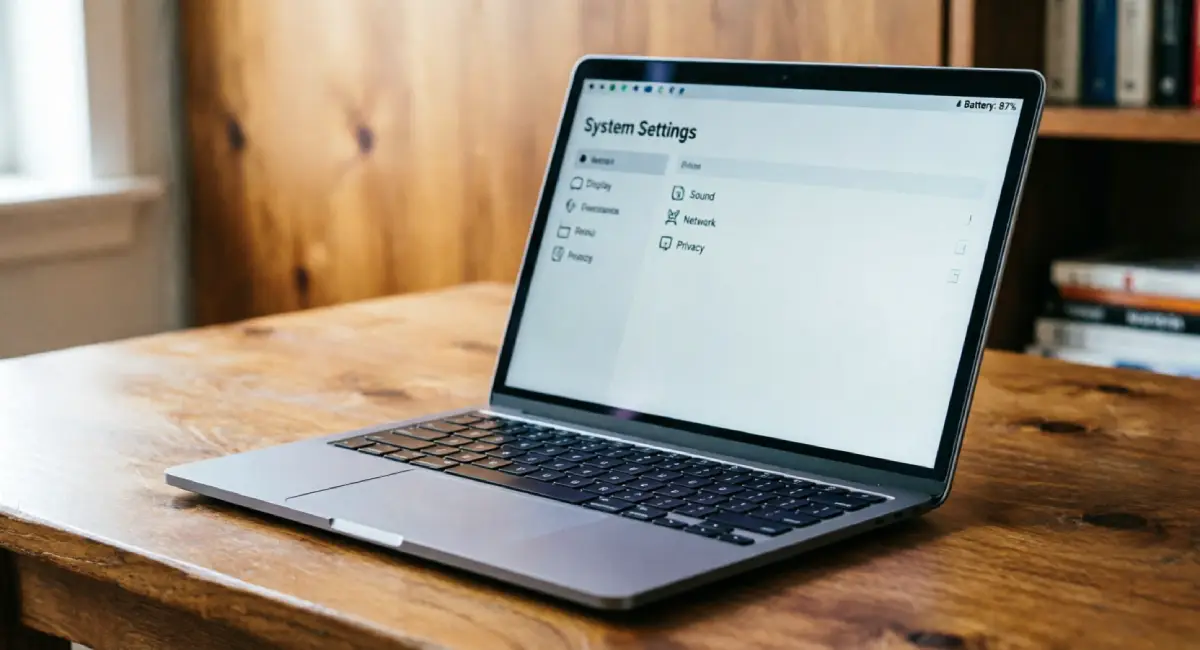
This section covers the main specs you will see on every laptop listing. For each one, the goal is simple: understand what it does, know what is enough, and recognise what overkill looks like for everyday tasks.
Processor (CPU) — The Brain of Your Laptop
The processor handles every calculation your laptop makes. When you open a browser tab, play a video, or switch between apps, the CPU is doing that work. A faster processor handles more tasks at once without slowing down.
For everyday use, you do not need the fastest processor available. You need a recent-generation mid-range chip. Intel Core i5 or AMD Ryzen 5 processors cover everyday workloads comfortably. Moving up to an i7 or Ryzen 7 gives more headroom, but it is rarely necessary for browsing, documents, and video calls. Apple’s M-series chips, found in MacBooks, pair strong performance with efficient battery life.
The keyword is “recent.” A mid-range chip from the last two years will outperform an older high-end chip in day-to-day responsiveness. When comparing options, check what generation the processor belongs to, not just the model name.
RAM — How Much Do You Actually Need?
RAM is your laptop’s short-term memory. It holds everything currently open and running. When you have ten browser tabs, a document, and a video call going at the same time, RAM keeps all of that running without constant loading pauses.
- 8GB is the current minimum for everyday use. It works, but you may notice slowdowns with heavy multitasking.
- 16GB is the comfortable sweet spot for most students and workers. Things open faster, switching between apps feels smooth, and you have room to grow.
- 32GB and above is unnecessary unless you edit video, run virtual machines, or work with large data files regularly.
One thing to know: some budget laptops have RAM soldered directly onto the motherboard. This means it cannot be upgraded later. If a laptop ships with 8GB soldered RAM, that is what you have for its entire life. Keep that in mind when comparing budget options.
Storage — SSD vs HDD and How Much Space to Get
Storage is where your files, apps, and operating system live permanently. The type of storage affects how fast everything loads, not just how much space you have.
An SSD (Solid State Drive) has no moving parts. It reads and writes data quickly, which means your laptop starts up in seconds, apps open fast, and files load without delay. An HDD (Hard Disk Drive) uses spinning platters to read data, making it noticeably slower at everything.
For everyday use, an SSD is not optional. It is the single biggest factor in how responsive a laptop feels day to day. Aim for a minimum of a 256GB SSD, though 512GB gives you much more breathing room for files, downloads, and photos without constant storage management.
Be cautious with budget laptops still shipping with HDDs. Retailers sometimes list these at attractive prices, but the experience of using one in 2026 makes the savings feel worthless within days.
Display — Size, Resolution, and What to Ignore
The display is what you stare at for hours every day. It deserves real attention.
Screen size comes down to how you use the laptop. A 13 or 14-inch screen is easier to carry and suits students moving between classes or workers switching between home and office. A 15 or 16-inch screen offers more visual space for side-by-side windows and feels more comfortable for long sessions at a desk.
Resolution matters more than most buyers realise. Full HD (1920×1080, often written as 1080p) is the minimum worth accepting. Screens below this look noticeably soft on modern displays, especially when reading text for long periods. Many mid-range and premium laptops now offer 1440p or higher, which looks sharper and is worth the upgrade if your budget allows.
Brightness, measured in nits, affects how usable the screen is in bright environments. Anything below 250 nits will struggle in a well-lit room or outdoors. Aim for at least 300 nits, with 400 or above being noticeably better for varied lighting conditions.
Refresh rate (measured in Hz) matters for gaming and fast video work. For everyday tasks, it makes no real difference. Ignore it entirely when comparing options for daily use.
Best Laptop Features That Go Beyond the Spec Sheet
The spec sheet tells you about processing power and storage. It rarely tells you what the laptop is actually like to use for eight hours straight. These features separate a machine you enjoy from one you endure.
Battery Life — The Spec Nobody Advertises Honestly
Every laptop manufacturer publishes a battery life figure. Almost none of them reflect real-world use. Those numbers are typically measured at low brightness, with Wi-Fi off and minimal background activity — conditions that bear no resemblance to a working day.
When checking battery life, look for independent reviews that test under realistic conditions: screen brightness at 150–200 nits, Wi-Fi on, mixed tasks running throughout. For students moving between classes and workers without constant access to a plug, you want at least 8 to 10 hours of real-world use.
A more reliable indicator than the manufacturer’s claim is battery capacity, measured in watt-hours (Wh). Generally, a 50Wh battery will last noticeably shorter than a 72Wh battery under similar conditions. It is not the only variable, but it gives you a more honest baseline when comparing options.
Keyboard and Trackpad — Underrated Daily Drivers
If you type all day, the keyboard is the most important physical feature on your laptop. Poor key travel (the distance each key moves when pressed) causes fatigue during long writing sessions. Consistent spacing, a well-placed backspace key, and optional backlighting for low-light working are all worth checking before buying.
The trackpad gets even less attention in spec comparisons, but a poor one makes everything slower. Glass trackpad surfaces feel more precise and age better than plastic ones. Look for smooth two-finger scrolling and reliable multi-finger gesture support, which saves a significant amount of time across a full working day.
If you can visit a store before buying, spend a few minutes typing on the keyboard and using the trackpad. No review captures how a keyboard feels as accurately as ten minutes of direct testing.
Ports — How Many and Which Ones Matter
This is one of the most overlooked decisions in laptop buying, and one of the most frustrating to discover after purchase.
For everyday use, a well-equipped laptop should include at least:
- One or two USB-A ports (for older peripherals, mice, USB drives)
- One or two USB-C ports (for charging, newer devices, docking stations)
- An HDMI port (for connecting to monitors or projectors)
- A headphone jack (still relevant for most users)
Ultra-thin laptops increasingly ship with only two or three USB-C ports and nothing else. While sleek in design, this means every older device requires a separate adapter or hub. For a student connecting to a projector, charging their phone, and using a USB mouse at the same time, this becomes a real daily inconvenience.
Check the port layout before you buy. It takes thirty seconds and can save months of frustration.
Build Quality and Weight — Especially for Portable Use
A laptop you carry every day needs to survive every day. Build quality affects both how long a laptop lasts and how it feels to carry.
Aluminium chassis laptops are generally more durable than plastic ones and flex less when you pick them up by a corner or drop them into a bag. They also tend to feel more premium, though at a higher price. For students or workers carrying a laptop regularly, an aluminium build is worth the extra cost if the budget allows.
Weight matters for portable users. A laptop under 1.5kg makes a noticeable difference when carried for hours. The gap between 1.3kg and 1.9kg feels small on paper but becomes obvious across a full week of commuting.
One detail often overlooked: hinge durability. On budget laptops, the hinge connecting the lid to the base is one of the first components to loosen or fail after regular use. If you can check reviews or teardown videos for any model you are considering, hinge comments are a good signal of overall build quality.
Operating System — Windows, macOS, or ChromeOS?
The operating system shapes the entire experience of using a laptop. Many buyers pick a device based on price or looks without thinking about which system fits their daily needs.
Windows — Most Flexible, Most Varied in Quality
Windows runs on laptops made by dozens of manufacturers, which means the range of hardware quality is enormous. A Windows laptop can cost $200 or $2,000, and the experience varies accordingly.
The strength of Windows is breadth. It supports the widest range of third-party software, and most people already know how to use it. Students relying on institution-specific software, particularly in engineering, design, or business programs, will almost always need Windows compatibility. It is also the most sensible choice if your workplace runs Windows-based systems.
The trade-off is inconsistency. Two laptops running the same Windows version can feel completely different depending on the manufacturer and hardware underneath. This makes research more important when buying a Windows machine than with other platforms.
macOS — Polished but Premium Priced
MacBooks run macOS and are built entirely by Apple. The hardware and software are designed together, which produces a consistently reliable experience across the product line.
Apple’s M-series chips deliver strong performance while running cool and quiet, with battery life that regularly outperforms comparably priced Windows laptops. Software support is long, with most MacBooks receiving system updates for six or more years after release.
The limitations are real. MacBooks cost more at every tier, and the ecosystem is closed. If you run software that only exists on Windows, a Mac is not a practical option without workarounds. For students already using an iPhone and iPad, the integration is genuinely useful. For everyone else, the premium price needs to be weighed against what you actually gain.
ChromeOS — Underestimated for Light Users
Chromebooks run ChromeOS, a web-first operating system. Everything is built around the browser and Google’s suite of tools. For a student who primarily works in Google Docs, Google Classroom, and a browser, a Chromebook does that job reliably and at a lower price than most Windows options.
The limitations are clear enough. Offline functionality is limited, though it has improved in recent years. ChromeOS does not run Windows or macOS applications. If a student needs specific local software for coursework, a Chromebook is likely not the right fit.
For basic daily tasks and users deeply embedded in the Google ecosystem, ChromeOS is the lowest-cost and lowest-maintenance option available. It deserves serious consideration, not dismissal.
How to Set a Realistic Budget Before You Shop

Setting a budget before you start browsing keeps you grounded. Without a clear number in mind, it is easy to get pulled toward more expensive options that offer little real-world improvement for everyday tasks.
What to Expect Under $500 / £400
Laptops in this range can handle everyday tasks. Web browsing, documents, email, and streaming all work fine on a decent budget machine. The trade-offs are real, though, and worth knowing in advance.
At this price, expect:
- Dimmer displays with lower brightness and colour accuracy
- Shorter battery life, often under six hours in real-world use
- Plastic builds that feel less solid and wear faster
- Slower processors from older generations
Even so, this tier is not a dead end if you know what to prioritise. A recent-generation processor and an SSD are non-negotiable even at the budget end. A laptop with an older processor or an HDD will feel slow from day one, regardless of price.
One firm piece of advice: avoid refurbished units at this price range unless they come with a verified manufacturer warranty or a clearly documented certification process. Unverified refurbished laptops from marketplace sellers carry real risk of hidden issues that surface weeks after purchase.
The $500–$900 / £400–£700 Sweet Spot for Most Users
This is where value takes a real jump. The gap between a $300 laptop and a $650 laptop in everyday use is significantly larger than the gap between $650 and $1,200.
In this range, expect:
- Full HD or higher resolution displays with better brightness
- Battery life that genuinely lasts through a full working or study day
- More durable build quality, often with an aluminium or reinforced plastic chassis
- Current-generation processors that handle multitasking without strain
Most students and everyday users will find a well-chosen laptop in this range satisfying for three to five years of regular use. This is the tier to target if budget allows, without stretching further unless a specific need justifies it.
Laptop Buying Tips Before You Finalise Your Decision
Before confirming any purchase, run through these steps. Each one takes a few minutes and prevents the kind of regret that shows up a week after the packaging is in the bin.
Check the Return and Warranty Policy First
Return and warranty terms are not a formality. They are a safety net that gives you time to discover real-world issues that no review covers.
Look for a minimum 14-day return window, with 30 days being better. This gives you enough time to test the laptop under actual working conditions rather than a brief showroom impression. A laptop that feels fine for twenty minutes can reveal keyboard flex, fan noise, or battery issues within a week of daily use.
A one-year manufacturer’s warranty is the minimum worth accepting. Two years is better for students, whose machines tend to get harder use over time. Read the warranty terms carefully: many standard warranties exclude accidental damage, which is the most common way laptops get damaged in daily use.
Read Reviews That Focus on Long-Term Use
Launch-day reviews are useful for understanding what a laptop offers out of the box. They are not useful for understanding how it performs six months later.
Battery capacity degrades over time. Keyboard keys can develop a rattle or inconsistency with heavy use. Fan noise that was barely noticeable in a quiet room becomes intrusive in shared spaces after extended use. These things take time to surface.
Search specifically for reviews or forum threads from users who have owned the laptop for six months to a year. YouTube comment sections on review videos often include long-term owner reports that are far more honest than the review itself.
Avoid Buying More Than You Need Right Now
The argument for buying a more powerful laptop “just in case” sounds reasonable. In practice, it usually means spending extra money on specs that go unused for the entire life of the device.
For everyday use, a well-chosen mid-range laptop purchased today will handle everything most students and workers need for three to five years. Processor and RAM improvements over that timeframe will be gradual, not dramatic, for the types of tasks covered in this guide.
Buying extra RAM or a faster CPU today to cover needs you do not currently have rarely pays off. Put that money toward better battery life, a sharper display, or a more durable build — things you will feel every single day.
Where to Buy — Retailer vs Direct vs Refurbished
Each buying channel has real advantages and trade-offs worth understanding.
Physical retailers let you handle and test the laptop before buying. You can check keyboard feel, display quality, and weight in person. Immediate in-store support for setup issues is also helpful for less experienced buyers.
Buying directly from the manufacturer typically offers the best warranty terms, the option to configure storage and RAM at purchase, and access to the full product range. The main downside is that you cannot test the device beforehand.
Certified refurbished units can offer genuine savings, particularly on premium laptops from Apple, Dell, or Lenovo, which run structured refurbishment programs. The critical word is “certified.” A manufacturer-certified refurbished laptop is a different product from a used laptop listed as “like new” by a third-party seller on a marketplace. Approach the latter with real caution.
The Right Laptop Is Simpler to Find Than It Looks
Buying a laptop for everyday use does not require hours of research or deep technical knowledge. It requires knowing which few things affect your daily experience and ignoring the rest.
Focus on a recent-generation processor, an SSD with at least 256GB of storage, 16GB of RAM, a 1080p display with adequate brightness, and battery life that matches how you actually work. Check the ports before you buy. Consider how much you carry it. Choose the operating system that fits your workflow, not the one with the most marketing behind it.
This guide is designed to give you that clarity — so you can walk into a purchase with a plan rather than guesswork. When you have a clear shortlist, go back through the checklist in the final section, verify the warranty terms, and read at least two long-term reviews. That process takes an hour. A bad laptop purchase takes years.
If this guide helped, the next article in this series covers how to choose tech products without getting pulled in by hype — a useful read before any significant purchase.